
How To Create Classy Custom Fonts In Kajabi using Google Fonts
Dec 31, 2025
One of the few things I've been less than impressed with when it comes Kajabi is the slim selection of stock fonts used in the app.
As a designer of high end coaching and online course creator website templates, Kajabi is easily my favorite app but I've been limited on the ability to create the designs that I want due to the stock font selections.
For my latest collection of Kajabi templates called the Milano, I had to have something high end that reflected the taste of a premium fashion or editorial magazine.
I wanted to use Bodini FLF, which is a font used in magazines such as Vogue and Elle so I needed to figure out how to do this, although the instructions I found in the Kajabi help center seemed to be a bit confusing so I wanted to break this down for you into a step by step article showing you exactly what I did.
There are actually 2 ways to embed a font into your page but this article will show you my favorite way, by using Google Fonts existing code.
Step 1: Find the font you want to use
First step is to go to Google Fonts, an online database that has pre-loaded font files and easy to use code to insert into your website.
You can use the search bar if you know the font you want, or you can just search through the database to find one that you like.
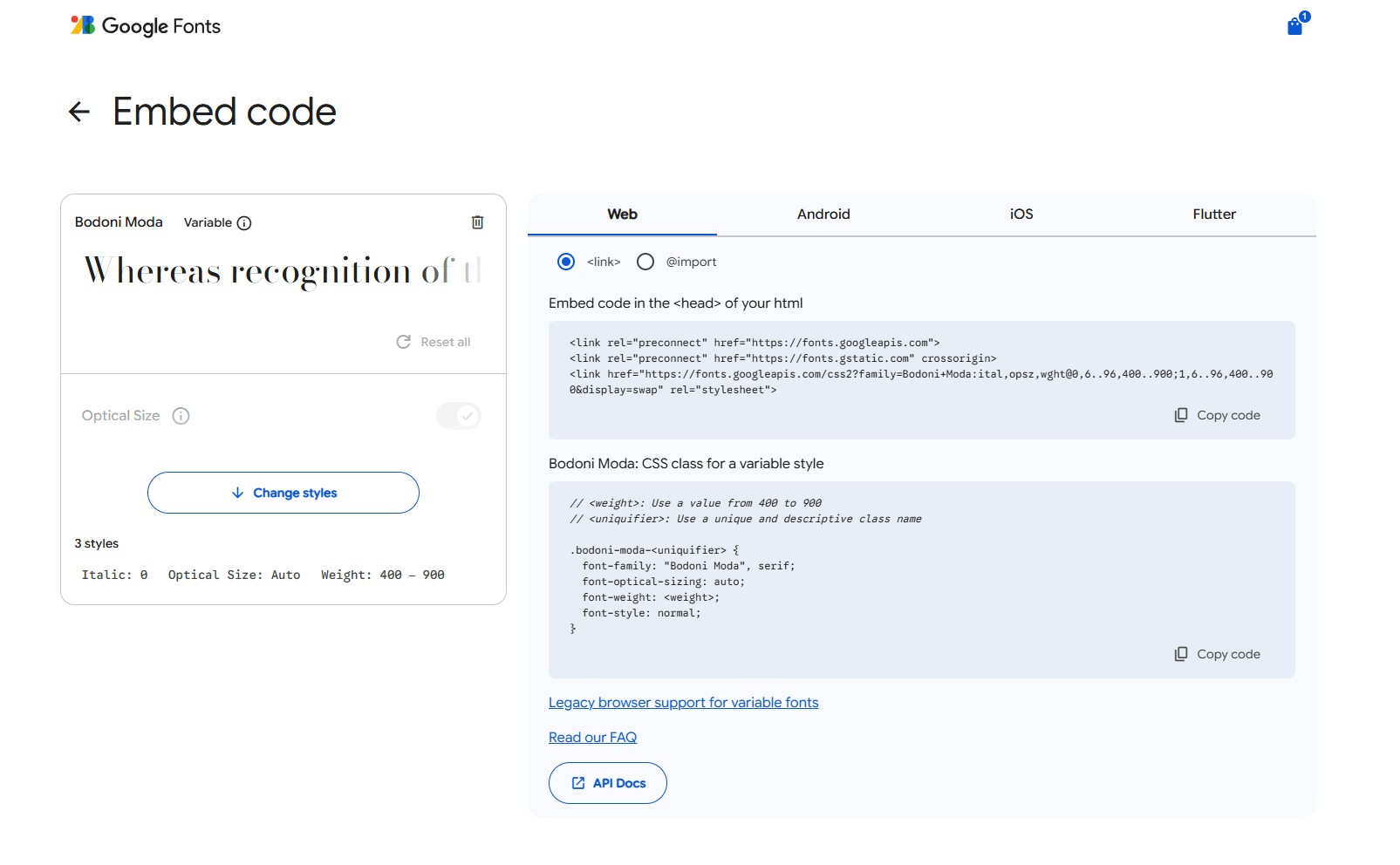
Once you've found the font that you like, click on the font to open the page and then click on Embed Code so you can access the copy and paste code that you will need.

Here is what the Embed Code page for your font looks like and what you will need:
Step 2: Add a Custom Code Block in your Kajabi app
Next you'll want to have a separate window and open up your Kajabi app and the individual page that you want to display your code on.
Click on 'add custom code' and you'll get a new block where you can copy and paste the code into your new block.
You'll want to copy and paste the code from the Google Embed Page that says Embed code in the <head> of your html into this section of the custom code block as shown:
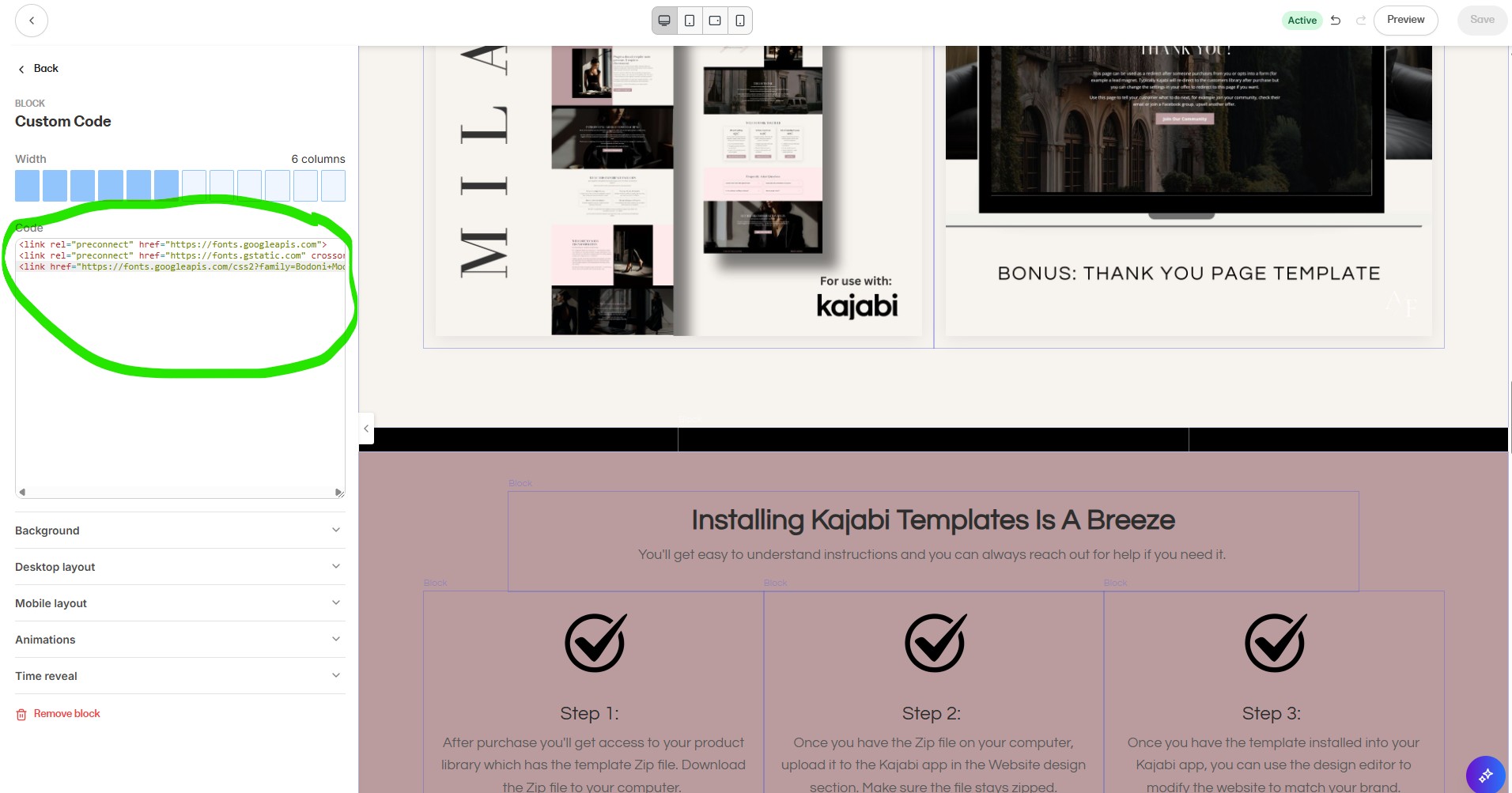
Now click on save. You may want to click on Desktop Layout and remove the padding, this will give you a small block which you can change the background color or leave it matching your base background color.
This will make it a thin strip of code and you can keep it at the bottom of your page or use it as a 'divider' as I did in my template.
Step 3: Change the CSS Code in the Settings
Here's where it can get a little complicated or confusing so I'll make this simple.
From the page you are on, just click the back button 2x using the button at the top left of your editor (not your browser but in the app) and you'll see the Sections and Settings at the top of the left column.
Click on Settings and you'll access the page styling settings (where you would normally change the entire page's fonts & colors).
From here click on the Custom Code button that is already there (4th section inside of settings).
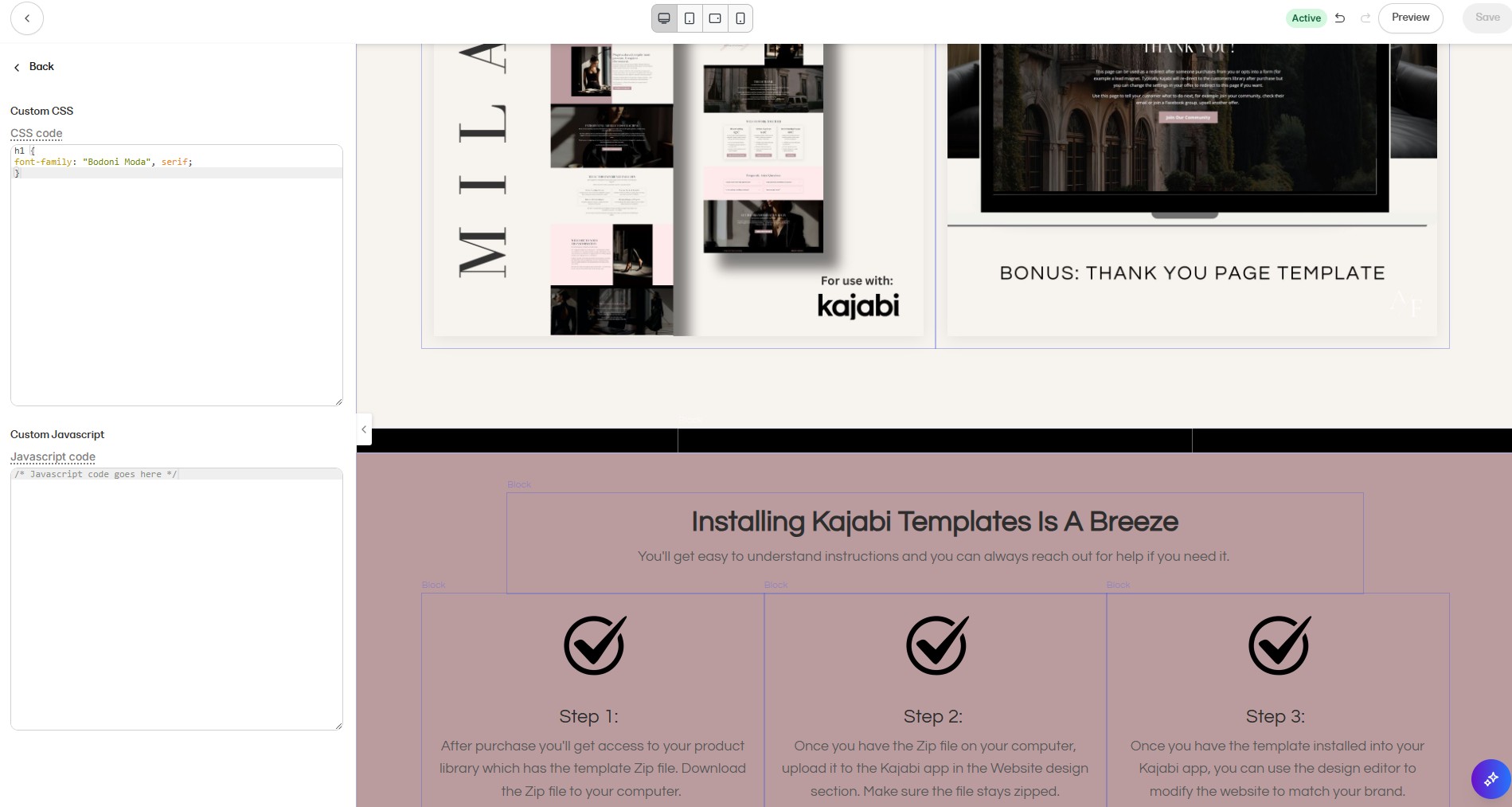
Here you will copy and paste this code:
h1, h2, h3, h4, p {
font-family: YOUR CODE HERE;}


From here you'll want to replace the YOUR CODE HERE with the name of your font.

You can find the name of your font in the original code we copy and pasted in the part where it says "Font Family".

For example here I used Bodoni Moda so I'll copy and paste that to replace the YOUR CODE HERE.


Once that is done, it should overwrite the font on your entire page including:

H1, H2, H3, H4 and paragraph tags.

Since I only wanted to use this font in the headers, I deleted the 'P' and the page will
default to the font that you originally have set up in the Settings>Styling section.

Now the header on my HERO section has been changed to look like this with the elegant Bodoni Moda font.


And that's how its done! I've now got a beautiful editorial style font on my page!

Simon


Grab my free High Ticket Coach Branding Guide
A free guide for coaches, consultants, and creators who are ready to ditch the DIY look and step into a cohesive, premium brand presence that sells.
We hate SPAM. We will never sell your information, for any reason.